AI talks · Case study
How to make a music video with AI
The video for “You'll Never Know” was made with several artificial intelligence tools, but never on autopilot: a human decides, AI prepares, checks and assembles. Here is the full method, step by step, with the tools used and what they cost.
You'll Never Know · official video
On a café terrace, Sofia realizes her boyfriend only has eyes for someone else. No scene: she slips a note under his cup and walks away, lighthearted. A breakup told as a gentle comedy, in warm colors.
The animated making-of.
This animation sums up the method. It was itself coded in HTML by Claude, and its voice-over was generated with Voxtral, Mistral AI's text-to-speech model. The narration is in French. Tick “Pause à chaque étape” (pause at each step) to follow it at your own pace.
Making a video with AI in 8 steps.
The principle: prepare everything on paper, then as still images, and only move to video at the very end. An image is easy to fix; a failed video costs credits, and sometimes the whole edit.
- 01
Start from the song and its lyrics
It all starts with the song, here the rap version of “You'll Never Know”, from the album Can You Rap ?. Like all of Sofia's songs, it starts with lyrics written by a human, refined with AI, then set to music with Suno.
The AI gets the lyrics and the audio file. A transcription tool finds the exact moment each word is sung, to a hundredth of a second. These markers are then used to cut the video into shots and to sync the lips.
- 02
Write the storyboard
The storyboard is the video cut shot by shot, a bit like a comic strip. For each shot, you note what we see, the lyrics being sung, the duration, and whether it's a sung shot (Sofia sings to camera) or a story shot (the action moves forward).
For “You'll Never Know”, that means 35 shots for 3 minutes, 15 of them sung. Each shot has its own card in a small app built with Claude. That's also where the tone is set: a bright video, a gentle comedy in warm colors, even for a breakup song.
- 03
Set up a visual bible
This is the secret to consistency. Image generators remember nothing from one image to the next: without fixed references, the face, the hairstyle or the setting change with every shot.
The visual bible gathers everything that must never change: a character sheet (face, freckles, which side the ponytail falls), a set board (the terrace and its sign) and the recurring prop, here a big cup of tea. The same sentences are copied word for word into every prompt.
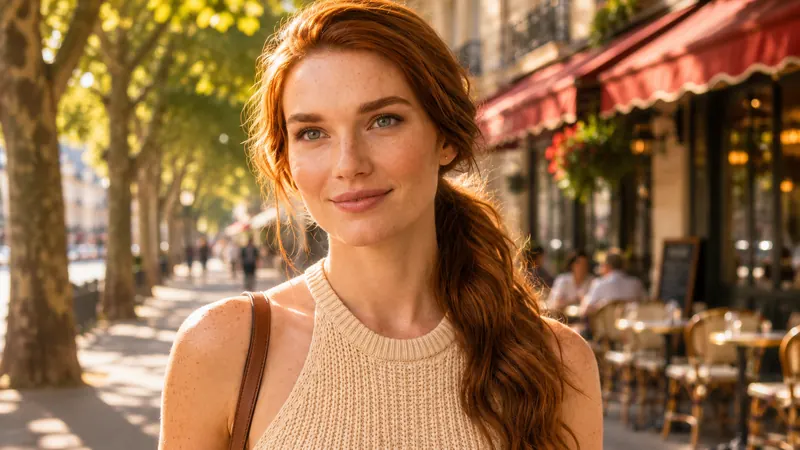
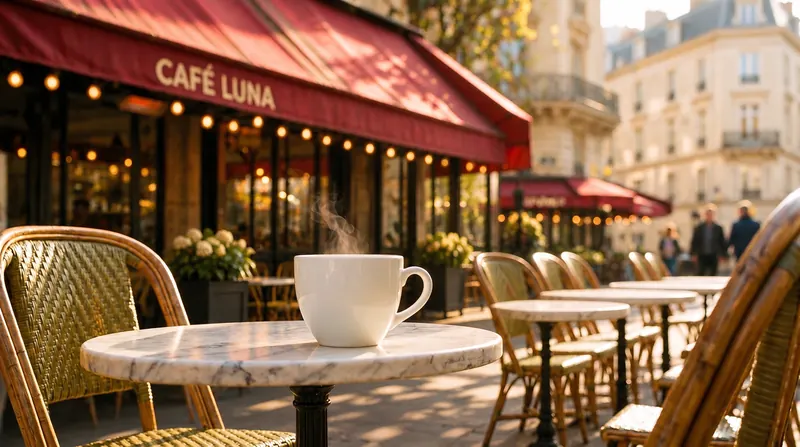
Two references from the visual bible: the character sheet and the set board, with the recurring cup. - 04
Write the prompts and make a rough cut
For each shot, Claude writes a prompt, the precise description of the image to generate: framing, expression, setting, light. Drafts costing a few cents make it possible to check that the shots flow before producing the real images.
Pierre then generates the final images in Google Flow, from the prompts and the bible's references. A tip: also write what you don't want (“no jewelry”, “no other word on the sign”), or the AI will make things up.
- 05
Check consistency, image by image
This is the most important step, and the one most often skipped. Each image is compared with the one before and the one after: same face, same outfit, same light, same setting, readable and correct text.
On this video, the review spotted, for example, a bright red awning instead of the café's burgundy one, a cup that was far too big and freckles that were too strong on one shot. You fix things at this stage: once the video is generated, every mistake costs credits.
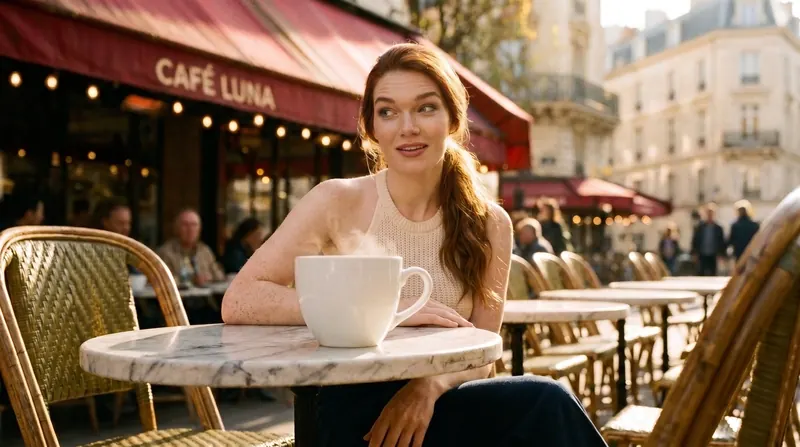
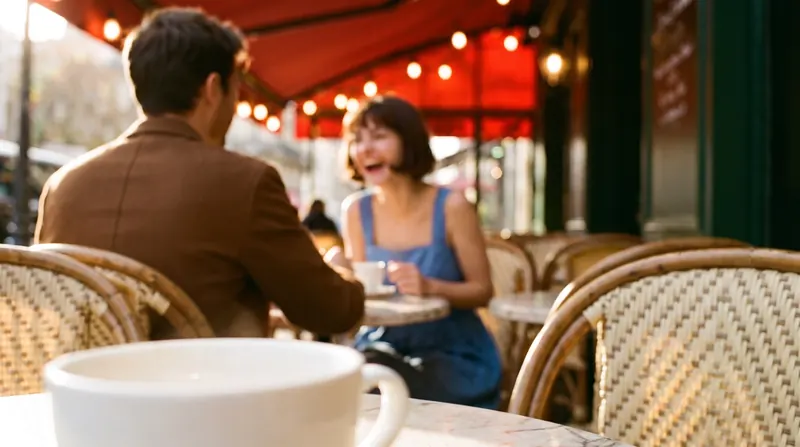
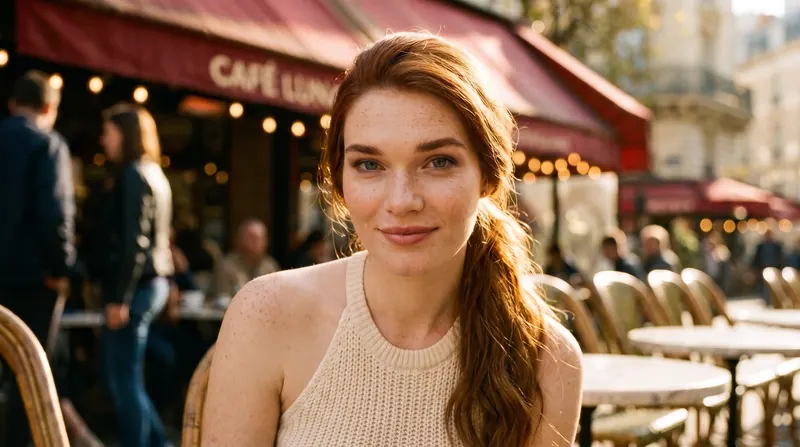
Continuity view: shot 3, in the middle, has a bright red awning instead of the burgundy one, and a cup that is too big. - 06
Turn the images into videos
Once all the images are approved, they get animated. The sung shots go through a lip sync model, MiniMax H3: from an image and an excerpt of the song, it moves Sofia's lips in time with her voice.
The story shots (walking, standing up, slipping a note under a cup) are animated in Google Flow. The rule: one generation per shot, one simple gesture and a static camera.
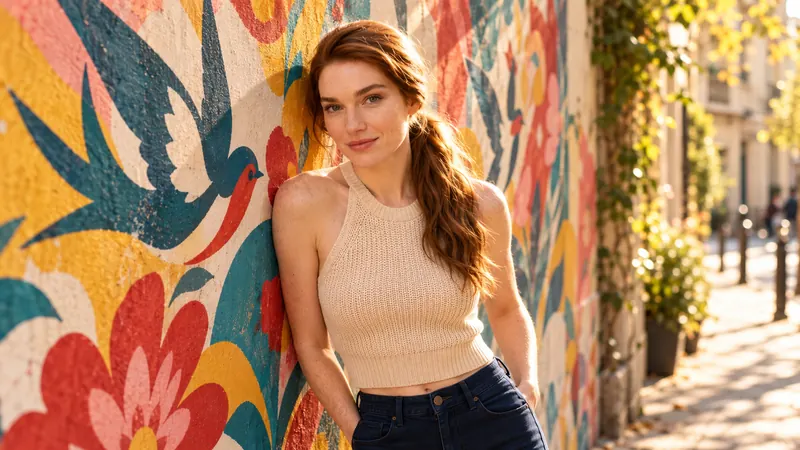
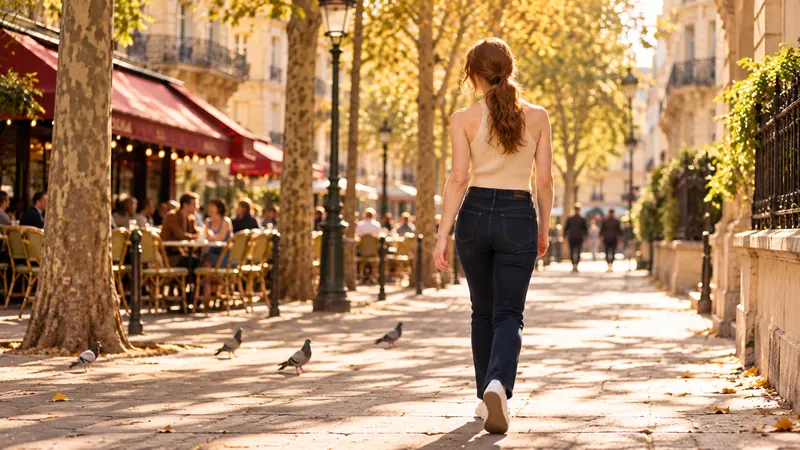
Left, the starting image of a sung shot (lip sync); right, a story shot animated in Google Flow. - 07
Edit and sync
Claude assembles the shots on the audio track with ffmpeg, a command-line editing tool, placing each shot to the exact frame. It adds the on-screen lyrics at the right moment.
It then makes a vertical 9:16 version for TikTok, Instagram Reels and YouTube Shorts.
- 08
Publish
Last step: three YouTube thumbnails to test, subtitles in French and English, an 8-second loop for Spotify Canvas and a post adapted to each social network. Pierre chooses and publishes.
The tools used for this video.
| Step | Tool | Use | Cost |
|---|---|---|---|
| Song | Suno | Music and singing voice | Subscription |
| Transcription | ElevenLabs Scribe v2 (via fal) | Word-level timing of the lyrics | A few cents |
| Storyboard, prompts, checks, editing | Claude (Anthropic) | Preparing and checking every step | Subscription |
| Images | Google Flow | Reference images and every shot | Google subscription |
| Images (backup) | ChatGPT | Occasional replacements | Subscription |
| Sung shots | MiniMax H3 lip sync (via fal) | Lip sync, in 768p | ≈ €0.04 ($0.05) per second |
| Story shots | Google Flow | Animating the images | Subscription credits |
| Editing | ffmpeg | Assembly, sync, 9:16 version | Free |
| Making-of voice-over | Mistral Voxtral TTS | “Léa” voice (French) | A few cents |
The only pay-as-you-go cost is fal, the platform that gives access to MiniMax H3 and to the transcription: about €16 ($18.50) for October 2026, tests included, €11 ($12.80) of it for the lip-synced sung shots. Everything else runs on subscriptions already in place: Suno, Google and Claude.
What this video taught us.
Likeness comes from the starting image.
Not from the video resolution: 768p is enough for lip sync.
Replace a shot from its neighbor.
Edit the image of a neighboring shot. A brand-new image, especially from another generator, creates a jump in colors and face.
Show objects rather than describe them.
Giving the cup as a reference image is the only way to keep it identical from shot to shot.
Take care framing the sung shots.
Face at about a third of the height, mouth clearly visible, hands resting: free hands make strange gestures.
Write visible text word for word.
“CAFÉ LUNA”, no other word: otherwise the AI invents, like the “CAFÉ LUNA CONE” spotted on one shot.
Avoid slow motion.
In-between frames get blurry. Better to pick the right duration when generating.
Making a video with AI: your questions.
How much does a music video made with AI cost?
For this 3-minute video, the pay-as-you-go generation (on fal) cost about €16 ($18.50) over the month, tests included, €11 ($12.80) of it for the lip-synced sung shots. The rest runs on existing subscriptions: Suno for the music, Google for the images and Claude for the preparation and editing. The real investment is the art direction and the checking.
How do you keep the same character from shot to shot?
With a visual bible: a character sheet, a set board and the props as reference images, plus the same sentences copied into every prompt. Then each image is compared with its neighbors before moving on to video.
Which tool makes a character sing (lip sync)?
For this video, MiniMax H3 in lip sync mode, through the fal platform: you give it an image and an audio excerpt, and it returns a synced video. Leaving half a second of margin after the last word improves articulation.
Do you need to know how to edit or code?
No. The editing is driven by Claude from plain-language instructions. What matters is knowing what you want to see, and checking.
Does the AI do everything on its own?
No. The human keeps the art direction: the story, the tone, choosing and approving every image. The AI helps prepare, check and assemble.
Learn how to do it.
These methods are part of the talks and workshops on AI led by Pierre-Etienne Noble.